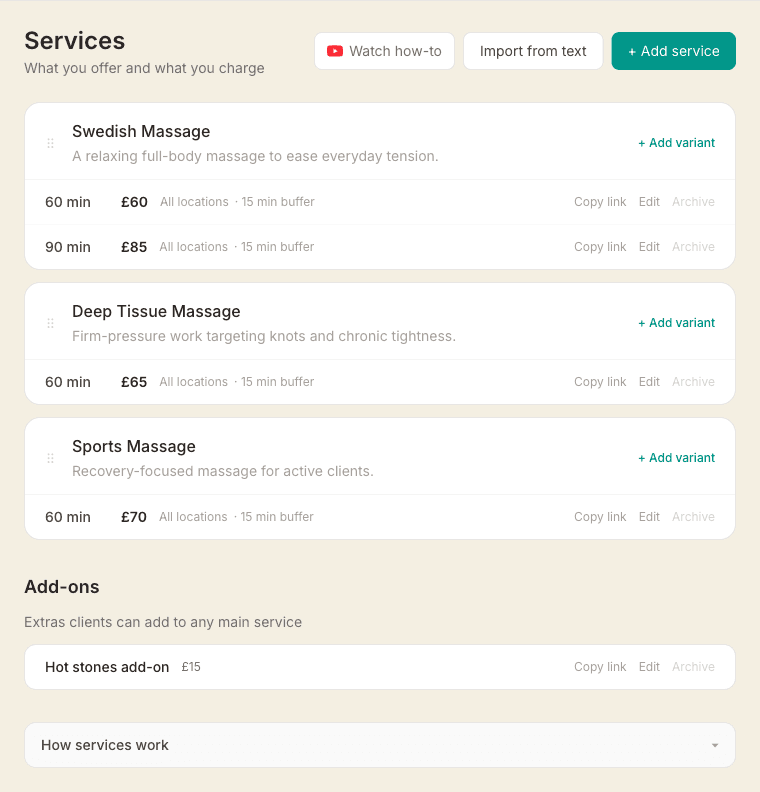
Your service list is what clients see when they visit your profile page. You can have as many services as you like.
Adding a service
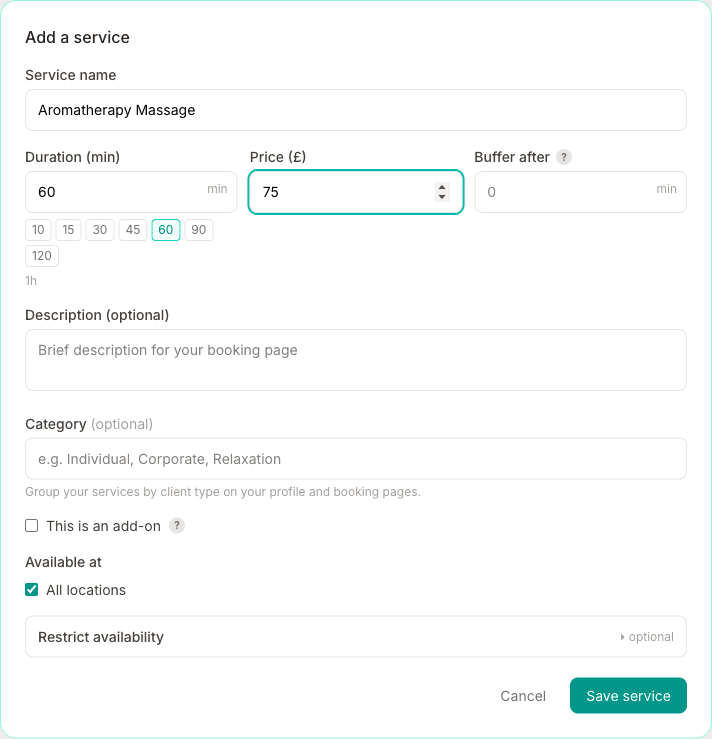
Go to Services and click Add service. Fill in:
- Name — what it's called (e.g. "Swedish Massage" or "Deep Tissue Massage 60 min")
- Duration — in minutes
- Price — in pounds
Grouping by duration
If you offer the same treatment in multiple lengths, use the same base name and MassageHub will automatically group them. For example:
- "Swedish Massage 60 min" · 60 min · £60
- "Swedish Massage 90 min" · 90 min · £80
These appear as a single card on your profile page with duration chips clients can select.
Reordering services
Drag the handle (⠿) on the left of each service group to reorder them. The order you set here is the order clients see.
Duration presets
When adding or editing a service, click any of the quick-pick buttons (30, 45, 60, 90, 120 min) to set a common duration instantly, or type any number between 5 and 480 minutes directly. Durations of 60 minutes or more are shown as hours and minutes (e.g. "1 hr 30 min") to make them easier to read.
Buffer
The Buffer field adds a hidden gap after the service ends before the next slot becomes available. Use it to give yourself time to wash linens, clean the room, write notes, or travel between appointments.
This buffer is never shown to clients — it's invisible to them on your booking page, and the appointment's end time stays the length of the treatment. A 15-minute buffer after a 60-minute service means the next bookable slot starts no earlier than 75 minutes after the session begins, not 60. If the location also has a buffer, whichever is longer applies, not both added together.
The buffer doesn't shorten your day. If you finish at 6pm, a 60-minute service can still start at 5pm. Only the treatment has to fit inside your working hours, and the cleanup time after your last client can run past it.
Changing a service price
When you edit a service price, bookings already in your diary keep the price you originally quoted, so a client who booked at the old rate isn't surprised by a higher bill. That's the safe default, but it does mean every existing booking stays on the old price until you say otherwise.
If you want existing future bookings to move to the new price, look for the amber banner that appears under the service: "N upcoming bookings of {service} are still at the old £X price". Tap Update to £Y and you'll see a tick-list of the affected bookings with the old → new price beside each one. Free or £0 sessions are left unticked by default, and any booking you've already taken payment for is disabled so you can't accidentally change the recorded charge. Confirm and they all move across at once.
Long descriptions on a phone
A detailed description is good for clients, but on a phone several long ones in a row push your prices and durations off the first screen. You can shorten how they appear without editing a word of what you wrote.
Go to Settings, then Profile, and find Service descriptions under "Services on profile". Choose Show the first couple of lines, with a "more…" link. Your descriptions then appear as two lines with a more… link, and a client who wants the full text taps it to open it up. Short descriptions are left alone — the link only appears where there is genuinely more to read.
The setting covers the service descriptions on your public profile, your booking page, and the pages where a client buys a package or membership. It changes only what shows first: nothing is deleted or shortened, and paragraph breaks come back exactly as you typed them when a client expands the text. The default is to show everything, so your pages look the same until you choose otherwise.
Service categories
If you offer services for different types of clients — for example, individual massage treatments alongside corporate chair massage packages — you can group them using categories. Add a category name (e.g. "Individual" or "Corporate") to each service when creating or editing it.
Once any service has a category set, your profile page and booking page will automatically display services in separate sections labelled by category. Services without a category appear under a default "Services" heading. Categories are only available on main services, not add-ons.
Add-on services
Add-ons are extras clients can add to any main service — things like hot stones, aromatherapy oil, or a theragun upgrade. To create one, click Add service and tick This is an add-on.
Add-ons can have a duration of 0 minutes (e.g. lavender oil — no extra time needed) or a set number of minutes (e.g. a 10-minute theragun session that extends the appointment). The price is added to the main service total.
Limiting an add-on to certain treatments. By default an add-on is offered with every treatment. When This is an add-on is ticked, an Available with option appears: leave it on All treatments to keep that, or untick it and choose the specific treatments the add-on belongs to. Hot stones can then show with your Swedish and deep tissue massages but not, say, your reflexology. On the booking page a client only sees the add-on once they've chosen a treatment it applies to. The same goes when you book a client in yourself from your calendar.
When a client books, they'll see an optional add-ons step after choosing their main service. They can select as many as they like, or skip. The total duration and price update in real time. Add-on names appear on booking confirmation emails sent to both the client and you.
Add-ons appear in a separate section below your main services on the Services page, so your service list stays tidy.
Requiring a consultation first
Some treatments are best started with an initial consultation — a sports massage assessment, for example, before someone's first proper session. You can require that a treatment includes a consultation on a client's first visit.
Edit the treatment, and under Require a prior service choose the consultation (or whichever service must come first). By default, when a first-time client books that treatment, the consultation is added to the same visit, just before it, as one combined back-to-back appointment — so they're seen for the consultation and the treatment in a single visit. The booking page shows a note on the service up front, telling them a consultation is required first and what it adds to the price, so it's never a surprise at checkout, and the combined length and total are shown clearly before they confirm. The first visit is charged in full at booking (a deposit setting doesn't apply to it).
If you'd rather the consultation stood on its own — for a proper injury history before any hands-on work — tick Require it as a separate appointment first. Now a first-time client is asked to book the consultation as its own appointment, and the treatment only opens up to them once that appointment has taken place. There's no “mark complete” step for you to remember: the treatment becomes bookable the moment the consultation's time has passed (a no-show or cancellation keeps it locked). Same-visit pricing and the combined booking don't apply in this mode — each appointment is booked, and charged, on its own.
A client only needs this on their first visit: once they've had the consultation (a past appointment that wasn't cancelled, and that they actually attended in separate-appointment mode), they book the treatment on its own from then on. If a client believes they've already had the consultation elsewhere, they can say so — their booking then comes to you as a request to approve, so you can confirm with them before it's set. It only applies to the one service you choose, and if you later archive the consultation the rule simply lifts. Add-ons can't require a prior service.
Service-specific booking links
Each service has its own direct booking link. When a client opens it, that service is pre-selected on your booking page — they just confirm and pick a time. It's useful for linking directly to a specific treatment from your website, a social media post, or a campaign.
To copy the link, go to Services and click Copy link next to any service. Paste it wherever you like.
If you have multiple locations, the client will usually choose their location first, then see the pre-selected treatment to confirm — unless your booking page picks the location from the treatment (see Settings, then Booking), in which case they go straight to confirming. Either way they can change the duration at this point if they want — so the link is also a great way to showcase a treatment and let clients decide between lengths.
Private services (you book them in)
Some treatments you only run on set dates, or don't want dropped between normal appointments — an Ayurvedic treatment you offer one Saturday a month, say. Tick Private (hidden from your booking page) when you create or edit a service and it gets a Private badge but never appears on your public profile, your booking page, or a client's account, and clients can't book it themselves or reach it by link.
You stay in full control: add a private service to any booking yourself from your calendar, on whatever date suits. It also keeps working everywhere it's already used — existing appointments, invoices, and any package or membership it's attached to are unaffected. This is the difference from Archive, which hides a service from everyone including you so it can't be booked at all; a private service just stays off the public shelves while you book it in by hand. Ticking Private on an add-on hides it from the client's add-ons step the same way.
Archiving a service
If you stop offering a treatment for a while but don't want to lose the details, you can archive it instead of deleting. Click Archive next to the service and it will be hidden from your booking page and service list immediately.
To see archived services, scroll to the bottom of the Services page and click Archived services. Click Restore next to any service to bring it back.
Importing services
If you have an existing service list (from a website, document, or another system), click Import from text. Paste in the text and the AI will extract your services automatically for you to review before saving.