Build a library of aftercare topics — stretches, hydration reminders, post-treatment advice — and send a personalised selection to each client when you mark their appointment complete.
Setting up your aftercare library
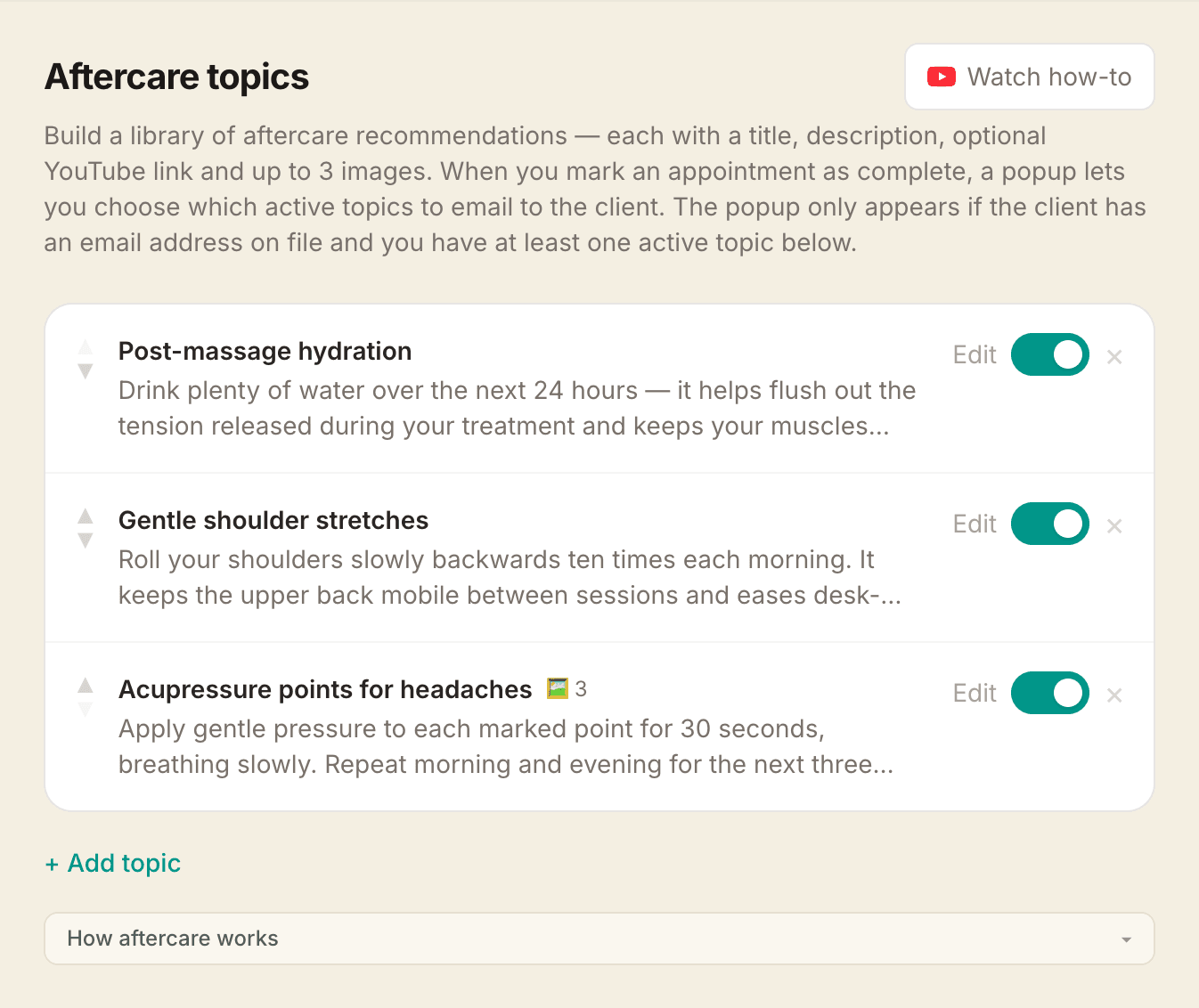
Go to Settings → Aftercare and click Add topic. Each topic has:
- Title — a short name shown as a heading in the email (e.g. "Shoulder mobilisation stretches")
- Description — the advice you want to share
- YouTube link — optional. Must be a full
https://www.youtube.com/link (shortyoutu.belinks are not supported as they trigger spam filters) - Images — optional, up to three per topic. Perfect for acupressure point diagrams or stretch illustrations. Images are resized automatically and shown inside the email under the topic's description. Diagrams keep their crispness best as PNG files; photos are fine as JPG
You can reorder topics using the ▲ ▼ arrows, toggle them active or inactive, edit them inline, or delete them. Only active topics appear in the completion checklist.
Sending aftercare at appointment completion
When you mark an appointment as Completed and the client has an email address, a popup appears showing all your active topics — all pre-ticked.
Deselect any topics that aren't relevant to this particular client or session, then click Send topics. The client receives a branded email with each selected topic as a card — with its images shown inline and a "Watch on YouTube →" link where applicable.
Click Skip to complete the appointment without sending aftercare.
Notes
- Aftercare emails are only sent if the client has an email address on file
- The popup does not appear if you have no active aftercare topics
- YouTube links must start with
https://www.youtube.com/— shorter links are blocked to prevent emails being flagged as spam - Topic images are stored at a public link so they load in your clients' inboxes — removing an image from a topic (or deleting the topic) doesn't delete the stored file, so emails you've already sent keep displaying correctly