Adding tracking to your booking page lets you see how many people visit, where they come from, and — if you run ads — which campaigns are actually leading to bookings. This guide walks you through each option step by step.
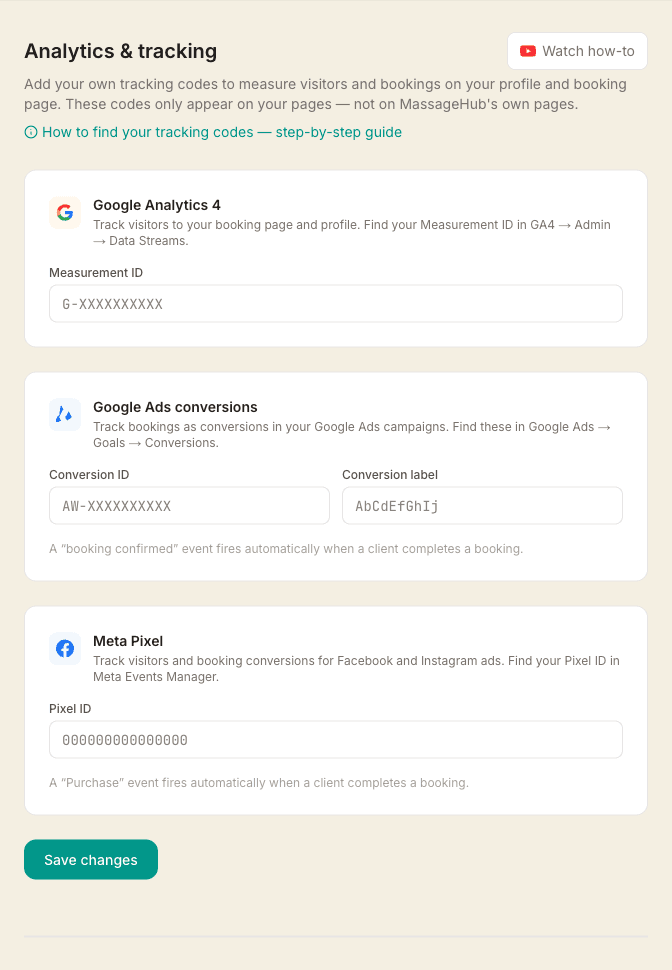
Go to Settings → Analytics to add your codes. Everything here is optional — only set up what you actually use.
Heads up: the codes here are your tracking, on your booking page. Separately, MassageHub itself uses Microsoft Clarity for anonymous product analytics so we can see where users get stuck and improve the app. Pages that show client details, intake answers, SOAP notes, or payment information are masked so the content is never recorded. See the privacy policy for full detail.
Part 1 — Google Analytics 4 (GA4)
GA4 tells you how many people visit your booking page and profile, where they came from (Google search, social media, a link you shared), how long they spent on the page, and how many went on to book. You need a free Google account to use it.
Step 1 — Create a GA4 account (skip if you already have one)
- Go to analytics.google.com and sign in with your Google account.
- Click Start measuring (or + Create if you already have an account).
- Enter an account name — something like "My massage practice" — and click Next.
- Enter a property name (e.g. "Booking page"), choose United Kingdom as your country, and set your currency to British Pound (£). Click Next.
- Choose your business type and click Create. Accept the terms when prompted.
Step 2 — Set up a Web data stream
- After creating the property you'll be prompted to choose a platform. Select Web.
- Enter your booking page URL — for example
massagehub.app/your-name— and give the stream a name. - Click Create stream.
Step 3 — Copy your Measurement ID
- On the stream details page, you'll see a Measurement ID at the top right. It looks like this:
G-XXXXXXXXXX
If you've already set up GA4 and need to find your Measurement ID again: go to Admin → Data Streams, click your web stream, and the ID is shown in the top right of the stream details.
Step 4 — Add the ID to MassageHub
- Copy the Measurement ID (the full
G-XXXXXXXXXXvalue, including theG-prefix). - Paste it into the Measurement ID field in Settings → Analytics.
- Click Save changes.
From this point, visits to your booking page, profile, treatment pages and client portal will be tracked in your GA4 account. Data usually appears in GA4 within a few minutes. A few individual pages are deliberately left out: tip and review links, intake forms and the account confirmation page can carry a client's email address or a private one-time link in the web address itself, so they never load your tracking codes.
Part 2 — Google Ads conversion tracking
If you run Google Ads campaigns (for example, search ads that appear when someone Googles "mobile massage [your town]"), conversion tracking tells Google Ads exactly which clicks resulted in a real booking — and how much each booking was worth. Google uses this data to automatically show your ads to people more likely to book.
You need two values: a Conversion ID and a Conversion label. Both come from a single conversion action you create in your Google Ads account.
Step 1 — Create a conversion action in Google Ads
- Sign in at ads.google.com.
- In the left-hand menu, click Goals, then Conversions, then Summary.
- Click the blue + New conversion action button.
- Choose Website as the conversion source.
- Enter your booking page URL when prompted, then click Scan.
- After the scan, scroll down and click + Add a conversion action manually.
- For Goal and action optimisation, choose Purchase.
- Give it a name — something like "Booking confirmed".
- Set Value to Use different values for each conversion so MassageHub can pass the actual booking amount.
- Set Count to One (count each booking once).
- Leave the other settings as defaults and click Save and continue.
- On the next screen, choose Use Google tag — then click Save and continue. You do not need to install any code manually; MassageHub handles this automatically.
Step 2 — Find your Conversion ID and label
- After saving, you'll be on the "Set up tag instructions" screen. Look for the section titled Google tag or Event snippet.
- Find the send_to value. It looks like this:
AW-123456789/AbCdEfGhIjKlMn
The part before the slash is your Conversion ID (starts with AW-). The part after the slash is your Conversion label.
If you need to find this later: go to Goals → Conversions → Summary, click the conversion action name, scroll to Tag setup, and expand the Use Google tag section.
Step 3 — Add both values to MassageHub
- Paste the Conversion ID (e.g.
AW-123456789) into the Conversion ID field. - Paste the Conversion label (e.g.
AbCdEfGhIjKlMn) into the Conversion label field. - Click Save changes.
When a client completes a booking, MassageHub automatically fires the conversion event and passes the booking value in GBP. The conversion will appear in your Google Ads account within a few hours.
Part 3 — Meta Pixel (Facebook & Instagram ads)
The Meta Pixel lets you measure how many people who clicked your Facebook or Instagram ads went on to make a booking. It also lets you create retargeting audiences (people who visited your booking page but didn't book), and build lookalike audiences to find new potential clients similar to your existing ones.
Step 1 — Create a Meta Pixel
- Go to business.facebook.com and sign in.
- In the left menu, go to Events Manager (you may need to navigate to your Business Suite or Ads Manager first).
- Click + Connect data sources and choose Web.
- Select Meta Pixel and click Connect.
- Give your pixel a name (e.g. "Booking page pixel") and enter your booking page URL. Click Continue.
- When asked how to connect, choose Install code manually — you do not need to follow the code instructions, but you do need to get to the screen that shows your Pixel ID.
Step 2 — Find your Pixel ID
Your Pixel ID is a 15–16 digit number shown at the top of the pixel setup screen, or in Events Manager next to your pixel's name. It looks like this:
123456789012345
If you already have a pixel and need to find the ID: go to Events Manager, and the ID is shown under each pixel's name in the list.
Step 3 — Add the Pixel ID to MassageHub
- Copy the numeric Pixel ID.
- Paste it into the Pixel ID field in Settings → Analytics.
- Click Save changes.
MassageHub will fire a PageView event each time someone visits your profile, booking page, or client portal, and a Purchase event (with booking value) each time a booking is confirmed. Events appear in Meta Events Manager within minutes.
Common mistakes and how to avoid them
Copying the wrong ID from Google Analytics
GA4 has two IDs that look similar: the Property ID (a plain number like 123456789) and the Measurement ID (starts with G-, like G-ABC123XYZ). MassageHub needs the Measurement ID — the one with the G- prefix. If you paste the plain number, the field will show an error.
Mixing up the Conversion ID and Conversion label
The send_to value in Google Ads looks like AW-123456789/AbCdEfGhIj. The Conversion ID is the part before the slash (including AW-). The Conversion label is the part after the slash. Both fields are required for conversion tracking to work — filling in only one will have no effect.
Using an old Universal Analytics ID
The older version of Google Analytics (Universal Analytics, now discontinued) used IDs starting with UA-. MassageHub only supports Google Analytics 4, which uses IDs starting with G-. If you have a UA- ID, you need to create a new GA4 property (it's free) and use that Measurement ID instead.
Entering extra spaces or characters
When copying IDs, it is easy to accidentally include a leading or trailing space. If you get a format error when saving, double-check that there are no extra spaces before or after the ID. Copying directly from the Google or Meta interface (rather than typing manually) avoids this.
Not seeing data after adding the codes
Google Analytics and Meta Pixel data does not appear instantly. GA4 typically shows real-time data within a few minutes, but reports can take up to 24 hours to update. Google Ads conversion data can take up to 72 hours to appear after the first conversion. If you still see nothing after 48 hours, check that the ID was saved correctly in Settings → Analytics — click Save changes again if you are unsure.
Thinking the codes apply everywhere on MassageHub
Your tracking codes only run on your pages — your booking page, public profile, and client portal. They do not track visitors to other therapists' pages or to MassageHub's own website.
Testing with your own visits
Visits you make to your own booking page will show up in your analytics. To avoid skewing your data, use a browser where you are not logged into MassageHub (or an incognito/private window) when testing, and use Google Analytics' IP filtering to exclude your own IP address from reports once you go live.