Availability controls which time slots appear on your profile page. It's split into two parts: your regular weekly hours and date-specific overrides.
Weekly template
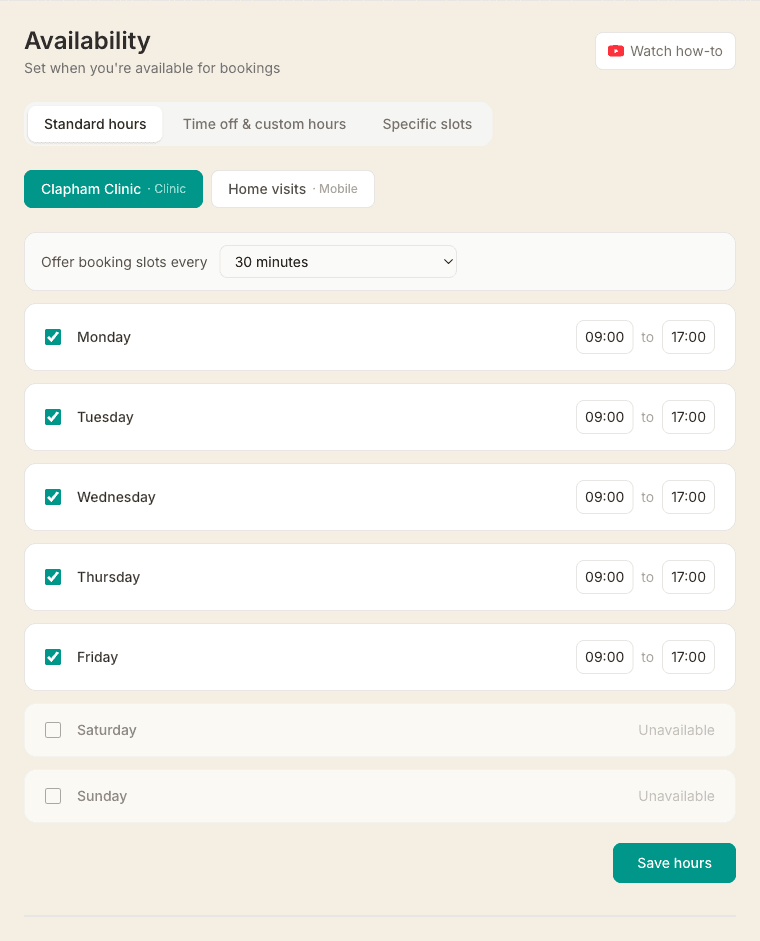
Go to Availability and set the days you work and the hours for each day. This repeats every week automatically.
For example: Monday–Friday, 9am–5pm. Clients will only see slots within these hours.
Date overrides
Use overrides to handle exceptions — days off, holidays, or extra availability. You can override a single day or an entire date range (e.g. a holiday week):
- Block this day — mark a date or range as unavailable (e.g. bank holiday, annual leave)
- Add extra availability — set specific hours for a date or range (e.g. 10am–2pm on a Saturday)
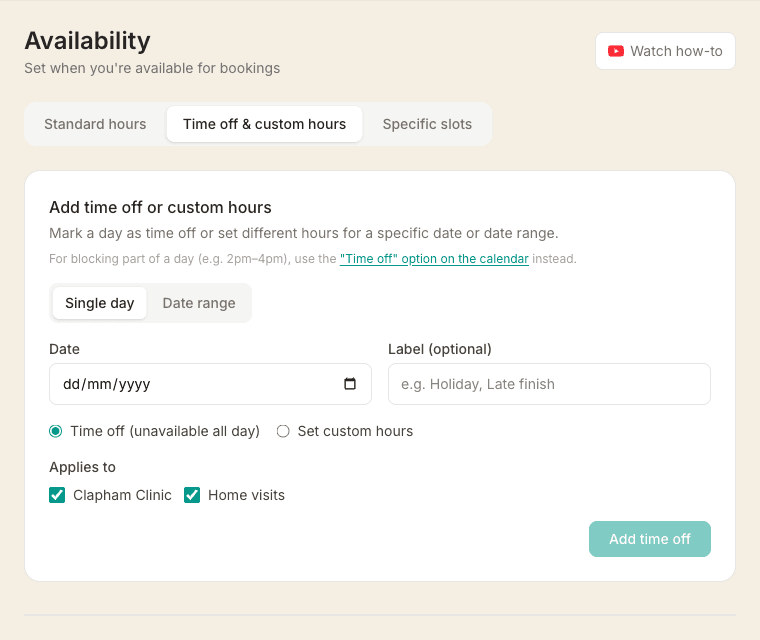
Custom hours replace your normal schedule for that day. Any time off you add on your calendar inside those hours, like a lunch break, still blocks bookings.
Private hours for labelled clients
The Private hours tab lets you offer times that only certain clients can see. Set them the same way as your standard hours, day by day. They apply to clients you've labelled VIP on their client record, and to nobody else.
You choose whether private hours add to your standard hours or replace them. Say you work 9am–6pm and set private hours of 9:30am–9pm. On add, a VIP gets 9am–9pm, because your earlier 9am start still stands. On replace, they get exactly 9:30am–9pm, which is usually what you want if you're thinking “their hours are 9:30 to 9”. Everyone else keeps your standard hours either way.
Three things worth knowing:
- Your client has to be signed in. The extra times only appear once we can tell who they are. Select them on your Clients page and use Invite to book. The email asks them to sign in with the address on their client record, then takes them straight to booking. If a VIP says they can't see the later times, check they're signed in with that same address — this is almost always why.
- Private hours don't apply on days with an override. If you've set custom hours for a specific date, or blocked a date range, that day uses exactly what the override says for everyone, VIP or not.
- Days you leave switched off keep your standard hours. Even on replace, a day with no private hours set still offers your usual times to everyone including VIPs — replace doesn't close the days you didn't configure.
The end time is when the last appointment finishes, not when it can start, exactly like your standard hours. So a window ending at 9pm means a one-hour treatment can start at 8pm, and a 90-minute one at 7:30pm.
Editing a single week from your calendar
For a one-off change it's often quicker to go to Appointments and tap Edit availability. You get a grid of the week where you can tap or drag to open and close individual slots, then Save. Anything you change here becomes a date override for those days, exactly as if you'd added it on the Availability page.
If you work more than one location, the grid has a tab for each one plus an All locations tab. Whichever tab you're on is the only thing your edit changes. So if you're mobile-only on Tuesdays, open the mobile tab to add Tuesday hours and your clinic stays closed. The tab you're on also decides what the grid shows, so the hours in front of you are that location's hours, not a merge of all of them.
A dot on a tab means you have unsaved changes there. You can edit several tabs and save them together, and Save stays greyed out until you've actually changed something. Reset clears the custom hours for the week you're looking at, for the current tab only, putting those days back on your weekly template. It asks you to confirm first.
Slot frequency
By default, booking slots are offered every 30 minutes (e.g. 9:00, 9:30, 10:00…). You can change this per location using the Offer booking slots every dropdown above your hours — from every 10 minutes for maximum flexibility, up to on the hour only (e.g. 9:00, 10:00, 11:00…). This saves along with your availability when you click Save hours.
How far ahead clients can book
By default there's no limit — your weekly hours repeat indefinitely, so a client can page forward in the calendar and book next spring if they want to. If you'd rather keep your diary to a shorter window, use Clients can book up to … ahead above your hours. Set a number and pick weeks or months, then click Save window.
The window is per location, so a clinic you plan around can be capped at 4 weeks while home visits stay open for 3 months. It rolls forward every day: set 4 weeks and there are always four weeks of dates showing, never a diary that runs out. The line under the setting tells you the last bookable date as it stands today.
On your booking page the calendar simply stops there — the arrow to the next month or week greys out, with a short line saying how far ahead you're taking bookings. It applies to clients rescheduling themselves too, so a booking can't be moved past your window. It does not apply to you: you can still add an appointment for any date from your own diary, whatever the window says.
To go back to no limit, tick No limit — clients can book any date and save.
How slots are calculated
When a client picks a service, the booking page shows available start times within your hours that fit the session duration, with no gap between sessions. Existing confirmed bookings are automatically excluded.