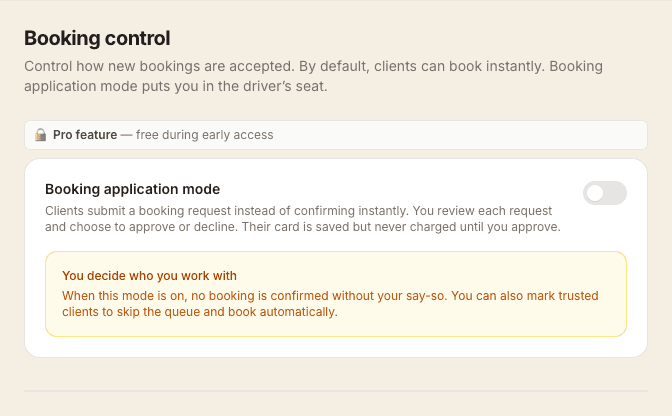
Enable application mode to turn new bookings into requests that you review before confirming. Clients save their card details during the booking flow, but no charge is taken until you approve.
Why use application mode?
If you've had bad experiences with clients booking without understanding your travel limits, cancellation policy, or service requirements — application mode puts you back in control. You see who is requesting before anyone is confirmed on your calendar.
Enabling application mode
Go to Settings → Booking and turn on the Booking application mode toggle. Once enabled, new client bookings will appear in your calendar as "Pending" (shown in amber) rather than confirmed.
What clients experience
- They go through the normal booking flow and enter their card details
- The submit button says "Request booking" instead of "Confirm booking"
- On completion they see: "Request sent — {therapistName} will be in touch to confirm"
- Their card is saved but not charged until you approve
- They receive a "booking request received" email
Reviewing requests
Open the Calendar page — pending requests appear as amber blocks with a "Pending" badge. An amber banner at the top of the page shows how many are waiting for review.
Tap any pending appointment to expand it, then choose:
- Approve booking — confirms the appointment, applies your charge policy (card charged if your setting is "at booking"), and sends the client a confirmation email
- Suggest a different time — pick another date and time, and the client gets an email with your suggestion and a link to book it. This declines the original request, so the slot isn't held while they decide, and no payment is taken.
- Decline — cancels the request. You can decline without a reason or add a short explanation. The client receives a polite email and no payment is taken.
Trusted clients
Some clients — regulars you know well — don't need to go through the review queue. Open any client's profile and enable Auto-approve bookings to let them book directly without waiting for approval. This toggle is only visible when application mode is active.
Which bookings are always confirmed immediately?
Membership and package redemptions, and cash bookings, are always confirmed instantly regardless of application mode — because payment is either pre-committed or deferred.
Disabling application mode
You can turn application mode off at any time in Settings → Booking. If you have pending requests when you disable it, you'll be asked to confirm — those requests stay pending and must be reviewed or declined manually.
Asking a screening question first
On the same settings page there's a Screening question. It asks one yes/no question before your booking page opens, in your own words, with a short line explaining why you're asking. Answer "Yes" and booking carries on exactly as normal. Answer "No" and the client sees a message you've written, and stops there.
It exists for therapists who only work with certain clients — a women-only practice, adults only, or treatments that need a consultation first — and would rather say so upfront than turn bookings away one at a time. It's particularly useful if you list your booking link somewhere public, like Google Business Profile, where people arrive without having read your profile.
Two things worth being clear about. It sets expectations rather than enforcing them: someone determined can still answer "Yes". What it does is put your reason in front of people before they start, so most never do, and you're not the one having to say no. If you want the final say as well, turn on application mode above and you get both. And clients already on your books skip the question when they're signed in.
Phrase your question so "Yes" is the answer that can go ahead. You'll need to save a question before the toggle will switch on — a blank question would leave every client at a dead end.