Let clients join a waitlist when you have no availability. If an appointment is cancelled, waitlisted clients are automatically notified with a link to book.
Enabling the waitlist
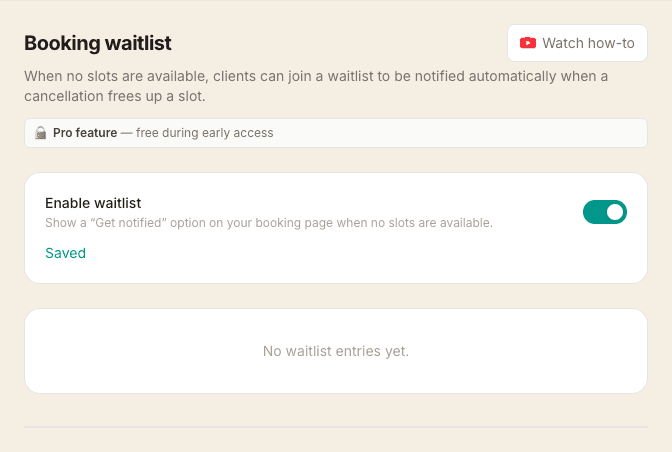
Go to Settings → Waitlist and switch on Enable waitlist. Once enabled, clients who reach a day with no available slots will see two options on your booking page:
- Jump to next available slot — automatically finds and jumps to the nearest date with availability
- Join the waitlist — the client confirms their name and email (pre-filled if they're logged into the client portal) and joins the queue
When someone joins
You get both an email alert and a push notification on your phone — with the client's name, email, and the service they were trying to book. The entry appears in Settings → Waitlist under the Waiting section, and a teal banner on your Calendar page shows the current waitlist count.
When a slot opens
When any appointment is cancelled — either by you from the dashboard or by a client via their cancellation link — MassageHub automatically emails up to 10 unnotified waitlist entries. Each person receives a “A slot just opened” email with a direct link to your booking page.
Only clients whose preferred date window covers the freed slot are notified. If someone joined hoping a slot would open before 22 May, they won't be emailed about a cancellation on 14 June. Entries that didn't set a preferred window are treated as “any slot, any time” and are always eligible.
The type of service that was cancelled doesn't matter — only the date and the length do. A cancelled deep tissue session will still alert someone waiting for a relaxing massage, as long as the freed slot is long enough for the service they want. So a 30-minute cancellation won't notify a client waiting for a 90-minute treatment, but a 90-minute cancellation will. Each waiting client shows the service and length they want in Settings → Waitlist, so you can see how much time you'd need to free up.
Clients can also opt-in to instant push notifications. After they join the waitlist they see a “🔔 Get an instant alert when a slot opens” button — those who enable it get a push to their phone the second a cancellation triggers an opening, ahead of the email landing.
Notified entries move to the Notified section in Settings → Waitlist. They are not auto-booked — the client must visit your booking page and choose a slot themselves.
What happens if no slot opens?
If a client's preferred date window passes without a slot opening up, MassageHub sends them an apology email the next morning. The email is signed from you, includes the service they wanted, and links to your booking page so they can see your next available slots and book if they still want to. Replies go to your inbox if you have Reply-to your own email turned on in Settings → Email.
Once the apology has been sent the entry moves to the Expired — apology sent section in Settings → Waitlist. They won't be emailed about any future cancellations — the relationship has been quietly closed out. You can still delete the entry with the × button if you want to tidy the list.
Adding a client yourself
If someone asks in person or over the phone, you can put them on the list for them. In Settings → Waitlist, click + Add a client to the waitlist and enter their name, email and the treatment they want. Add a From date if they're after a particular day, and a To date for a range; leave both empty for any date.
They're treated exactly like someone who joined from your booking page, so a cancellation in their window emails them automatically. The button only shows while your waitlist is switched on.
Notifying a client yourself
The automatic email only fires when an appointment is cancelled. If you make room another way — for example by adding availability or a date override — nothing is sent. For those cases each waiting client has a “Notify of opening” button in Settings → Waitlist. Click it and MassageHub emails that client the same “A slot just opened” message straight away, then moves them to the Notified section.
Managing the waitlist
Go to Settings → Waitlist to see all entries. You can delete any entry. Your Calendar page and main dashboard both show a banner with the number of people currently waiting, linking directly to the waitlist.
Notes
- The automatic email only fires on cancellation — when you add availability yourself, use the “Notify of opening” button to reach a waiting client
- If the waitlist feature is disabled, the join prompt is hidden and no new entries can be added
- iPhone clients need to add the booking page to their home screen before push notifications can be enabled — the cancellation email includes the install steps