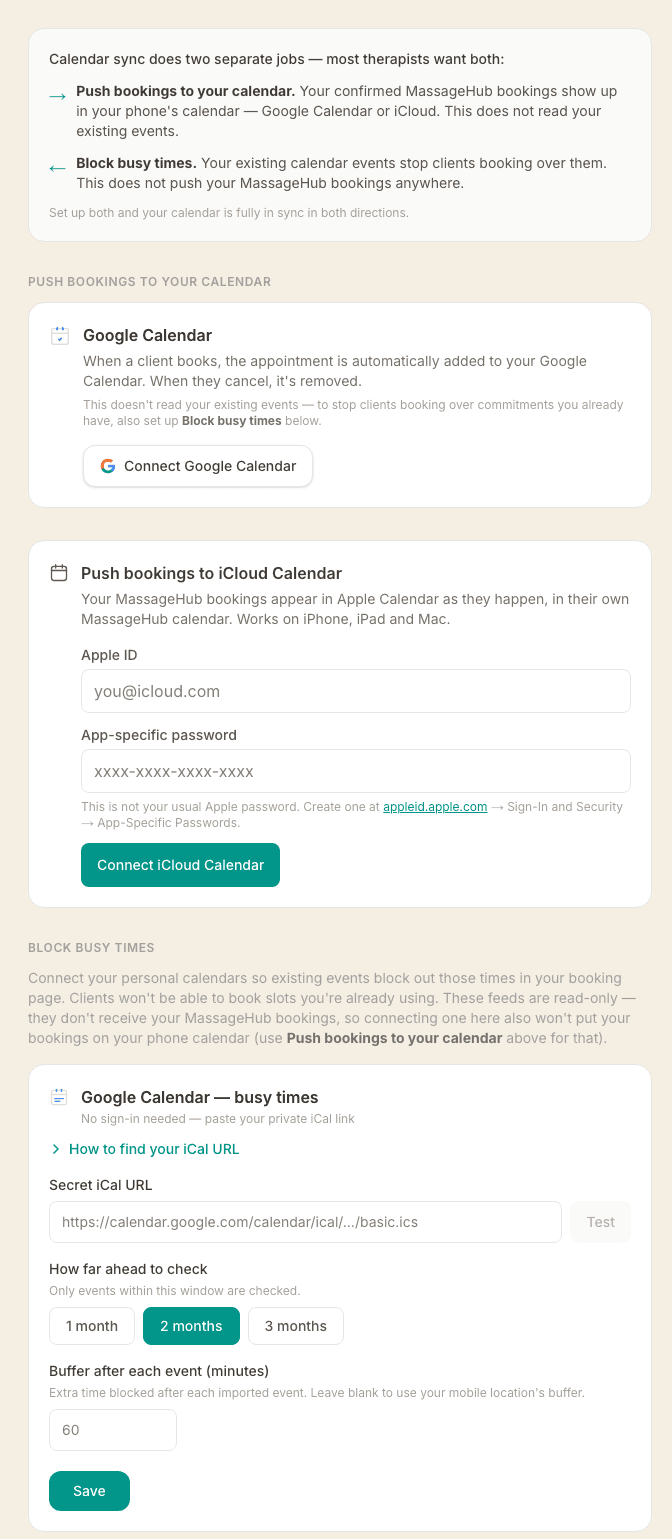
Calendar sync does two separate jobs, and most therapists want both. Push bookings to your calendar puts your MassageHub bookings into your phone's Google Calendar. Block busy times reads your existing calendar events so clients can't book over them. They're set up separately — connecting one does not do the other.
Push bookings to Google Calendar
Connect Google Calendar with one click and every new booking is automatically added as an event — including the client's name, phone number, and location. When a booking is cancelled it's removed from your calendar automatically.
This connection only writes bookings to your calendar — it does not read your existing events. To stop clients booking over commitments you already have, set up Block busy times as well (covered below).
- Go to Settings → Integrations
- Under Push bookings to your calendar, click Connect Google Calendar
- Sign in with your Google account and allow the requested permissions
- Once connected, all future bookings will appear in your Google Calendar instantly
When you first connect Google Calendar, MassageHub will also backfill any upcoming appointments that were booked before you connected — so your calendar is complete from day one.
Push bookings to iCloud Calendar
If you use Apple Calendar rather than Google, you can push your bookings straight into iCloud. Go to Settings → Integrations, find Push bookings to iCloud Calendar, and enter your Apple ID along with an app-specific password. That is not your usual Apple password — create one at appleid.apple.com under Sign-In and Security, then App-Specific Passwords.
Your bookings then appear in a calendar called MassageHub on your iPhone, iPad and Mac, arriving as they are made and disappearing when they are cancelled. Unlike Google, iCloud does not backfill: bookings you already had stay where they are, and only new ones from the moment you connect appear. If you have also subscribed to your booking feed in Apple Calendar, unsubscribe there, or every appointment shows twice.
If new bookings stop appearing, the most likely cause is that the app-specific password was revoked at Apple's end. The Integrations page will say so, with a Reconnect button that keeps your existing MassageHub calendar rather than making a second one.
Disconnecting. Tapping Disconnect stops new bookings reaching your Google Calendar and also withdraws MassageHub's access at Google's end, so we no longer hold permission to your calendar at all. Appointments already in your calendar stay there. If you reconnect later, Google will ask you to grant permission again — that's expected, and it's what makes “disconnect” mean disconnected.
Disconnecting iCloud. Tapping Disconnect on the iCloud card stops new bookings reaching your iCloud calendar. Your MassageHub calendar and the bookings already in it stay in your iCloud — we simply stop updating them, so anything cancelled afterwards will still show there until you remove it yourself. Reconnecting with the same Apple ID reuses that same calendar rather than making a second one. To revoke MassageHub's access at Apple's end as well, delete the app-specific password at appleid.apple.com.
Note: During Google's review of the MassageHub app you may see a “Google hasn't verified this app” warning. This is temporary and safe to bypass — click Advanced, then Go to MassageHub.app (unsafe) to continue.
See your MassageHub appointments in your calendar app (iCal feed)
Subscribe to your private appointment feed and all your bookings will appear as events in Google Calendar, Apple Calendar, Outlook, or any app that supports iCal.
- Go to Settings → Integrations — your private calendar feed URL is shown at the top.
- Copy the URL.
- In Google Calendar: click + next to "Other calendars" → From URL → paste the link → Add calendar.
- In Apple Calendar: File → New Calendar Subscription → paste the link.
- In Outlook: Add calendar → Subscribe from web → paste the link.
Your appointments appear as a separate calendar. It's read-only — you manage bookings from the MassageHub dashboard, not from your calendar app.
Calendar apps refresh subscribed feeds on their own schedule — typically every 12–24 hours. A new booking may not appear immediately.
The feed URL is private — anyone with it can see your appointment schedule. Treat it like a password and don't share it publicly.
Block busy times from Google Calendar
Connect your personal Google Calendar and any events in it (meetings, personal appointments, days off) will automatically block those times on your booking page. No Google account sign-in required — you paste a private link from your Google Calendar settings.
- Open Google Calendar on a computer (not the app)
- Find your calendar in the left sidebar, click the ⋮ menu next to it, then Settings and sharing
- Scroll down to Integrate calendar
- Copy the Secret address in iCal format — it ends in
.ics - Go to Settings → Integrations in MassageHub and paste the URL into the Google Calendar field
- Click Test to confirm it connects, then Save
MassageHub checks the feed every 15 minutes. You can also set a buffer after Google Calendar events and choose how far ahead to import (1–3 months).
This is a read-only connection — it only blocks busy times. It does not push your MassageHub bookings anywhere. If you also want your bookings to appear in your phone's calendar, set up Push bookings to Google Calendar as well.
Using more than one calendar
Blocking busy times works with more than one calendar. Pushing bookings out does not, so it is worth knowing which is which.
Blocking busy times has three separate fields on the Integrations page: one for Google Calendar, one for Apple Calendar or any iCal feed, and one for Fresha. Every feed you connect blocks your booking page, and they all work at the same time.
In Google Calendar each calendar has its own Secret address in iCal format, so two Google calendars means two addresses. If you keep work and personal events apart, paste the first calendar's address into the Google Calendar field, then paste the second calendar's address into the iCal URL field under "Apple Calendar or any iCal feed" just below it. That field takes any iCal link, a Google one included, so both calendars end up blocking your availability. Give the second one a Calendar name and you can tell the two apart on your therapist calendar.
Pushing bookings out is different. Your bookings always go to your main Google calendar, and there is no option to send them to a different one.
All-day entries and the Free / Busy setting
Calendar entries carry a Free or Busy setting. For all-day entries, MassageHub follows it: an all-day entry marked Busy blocks that day, and one marked Free is ignored. It stays in your own calendar app as normal, but it no longer blocks bookings and it no longer appears on your MassageHub calendar.
This is because most all-day entries are reminders rather than time off — things like "Bins out" or "Back to school" — and they were closing whole days of bookings. Those no longer block your diary.
So if you want an all-day entry to stop clients booking — a holiday, a training day, a family commitment — open it in your calendar app and set it to Busy. That is the one thing to check if a day you meant to keep clear is still bookable. Single days of a repeating entry follow their own setting, in both directions: set one day to Busy and just that day is blocked, or set one day of a Busy repeating entry to Free and just that day opens up.
Timed events are unaffected. An event with a start and end time always blocks, whether it is marked Free or Busy.
Block busy times from Apple Calendar or any iCal feed
You can connect iCloud Calendar, Outlook, or any other calendar app that exports an iCal link — not just Google.
- In Apple Calendar: right-click a calendar → Share Calendar → copy the URL.
- On iCloud.com: open Calendar → share icon next to a calendar → Public Calendar → copy the link.
- Go to Settings → Integrations in MassageHub and paste the URL into the iCal URL field under "Block out busy times from Apple Calendar or any iCal feed".
- Add an optional Calendar name (shown on your therapist calendar as the source label), then click Test and Save.
Both webcal:// and https:// URLs are supported — MassageHub normalises them automatically.
Block busy times from Fresha
If you still use Fresha alongside MassageHub, you can connect your Fresha calendar so appointments there automatically block time here too — preventing double-bookings.
- In Fresha, go to Profile → Workspaces → Manage → Calendar sync, select Other Calendars and Export your Fresha Calendar, then copy the provided URL.
- Go to Settings → Integrations in MassageHub and paste it into the Fresha export URL field.
- Click Test and Save.
Travel buffer setting — Choose how Fresha handles travel time in its export. No buffers: Fresha exports raw appointment times and MassageHub adds your standard travel buffer before and after each block. After only (recommended default): Fresha pads the end of each appointment with travel time, so MassageHub only adds a buffer before the block. Before and after: Fresha includes travel time on both sides and MassageHub adds nothing extra. When in doubt, choose "After only" and check whether your availability looks right.
Fresha events appear as emerald blocks on your therapist calendar so you can tell them apart from MassageHub appointments.
Buffer strips on your calendar
When a buffer is applied to an imported calendar event, a hatched grey strip appears directly below the event block on your therapist calendar — showing exactly how much time is being held after that event before the next booking slot opens.
Use the Show/Hide buffers button at the top of the calendar to toggle these strips on or off. The legend at the bottom of the calendar labels them as Buffer time.