Your therapist uses MassageHub for their bookings. This short guide shows you how to sign in to your account with them, book your next appointment, and keep your card and details up to date. There's no password to remember and nothing to download.
Why sign in?
Some therapists only take bookings from clients they already know, or have agreed something special with you — like visiting you at home outside their usual area. The booking page can only recognise you once you're signed in. So if your therapist has asked you to sign in before you book, this is why.
Signing in also fills in your name, phone number and address for you, and lets you see, move or cancel your bookings.
1. Open your therapist's booking link
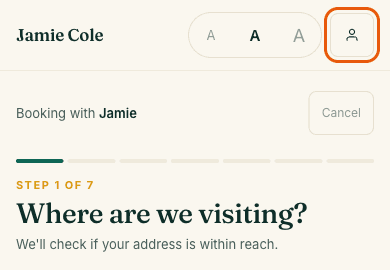
Use the link your therapist sent you. It looks like massagehub.app/their-name/book. At the top right of the page, tap the person icon (on a computer it says Sign in).
2. Enter your email and check your inbox
Type the email address your therapist has for you and tap Send sign-in link. Open the email from MassageHub and tap the link inside — that's it, you're signed in. You'll land back on the booking page, ready to book.
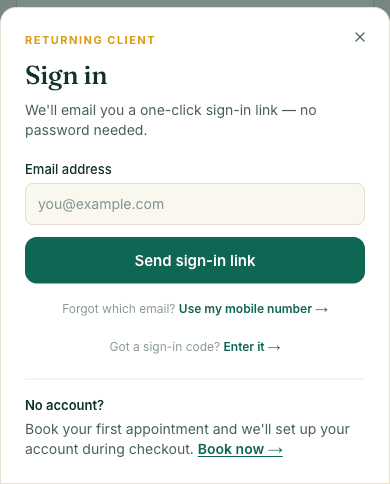
- Not sure which email your therapist has? Tap Use my mobile number. If they recognise your number, the link goes to the email they have on file for you.
- Opening the email on a different device? The email also has a code. Type your email address in the box first, then tap Got a sign-in code? Enter it and type the code in.
- No email after a few minutes? Check your spam folder. If it's not there, your therapist probably doesn't have your email saved yet — ask them to add it to your record, then try again.
3. Your account page
To see your bookings, card and details, tap the person icon at the top right of the booking page again — now that you're signed in, it opens My account. Your next appointment is at the top, with its date, time and treatment. Your past sessions are underneath, under History.
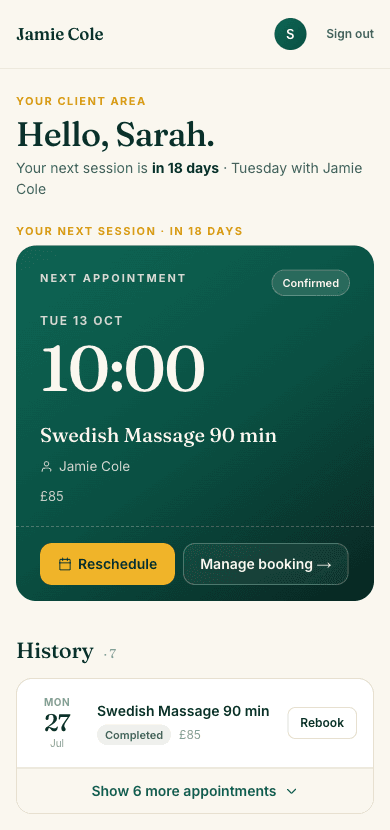
- Reschedule — pick a new date and time from your therapist's free slots. You'll only see this button if your therapist lets clients move their own bookings, and it disappears as the appointment gets close.
- Manage booking — see the full details or cancel, and change the time if your therapist allows it. Close to your appointment, a change goes to your therapist as a request for them to approve. Your therapist's cancellation policy is shown before you cancel.
To get back here any time, open your therapist's link and add /my to the end instead of /book — for example massagehub.app/their-name/my.
4. Book your next appointment
When you've no session coming up, your account page shows Ready for your next visit? Tap the Rebook button (it names your last treatment) to book the same treatment again, or Browse all services to pick something different. Then choose a date and time as usual.
Some therapists approve each booking before it's confirmed. If so, the last button says Request booking, and your appointment shows on your account page once they've approved it — you'll get an email either way.
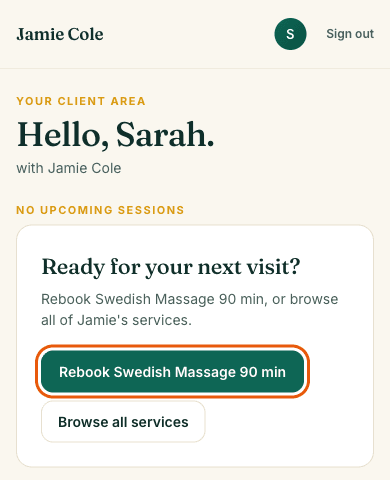
Already have a session booked and want another? Tap Rebook next to any past session in your History. Or just open your therapist's booking link — you're still signed in, so it knows it's you.
5. Update your card
Scroll down your account page to Payment method and tap Manage.
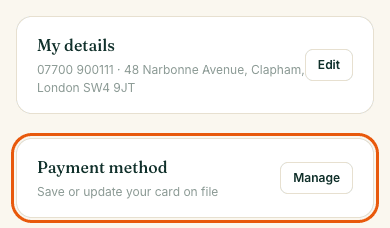
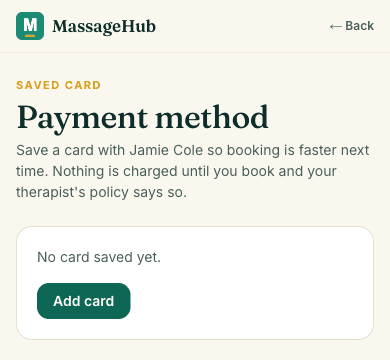
Tap Add card if you haven't saved one yet, or Replace card to swap in a new one — handy when your bank sends you a new card. You can also Remove a saved card. (If the page says your therapist isn't set up to take card payments, there's nothing to do here — they'll take payment another way.) Saving a card doesn't charge you anything; you're only charged when you book, in line with your therapist's payment policy. Card details are held securely by Stripe, never by your therapist.
6. Update your details
Tap Edit on My details to change your name, mobile number or address. Your email can't be changed here — if it's changed, let your therapist know and they'll update it for you.
Still stuck?
Get in touch with your therapist directly — they can check the email and mobile number they have for you, which fixes almost every sign-in problem.