When you book an appointment yourself from the calendar, clients don't go through the online booking flow — so there's no automatic card collection. Here's how to request a deposit or full payment from them.
Adding a new client at booking time
You don't need to go to the Clients page first. In the new appointment popup on the calendar, type the client's name into the Client field. If they're not found, a + Add “Name” as new client option appears at the bottom of the dropdown. Click it and fill in their name and phone number — email is optional but worth collecting so they can log into their client portal. The client is created and selected immediately.
Sending a deposit or payment request at booking
Once a client is selected and the appointment has a service chosen, a Send deposit request to client checkbox appears below the recurring appointment option.
Tick the box, then set the amount to request — it defaults to the full service price but you can change it to any amount (e.g. a 25% deposit). When you save the appointment, MassageHub emails the client a secure Stripe Checkout link for that amount. They pay on Stripe's hosted page and their card is saved automatically for future charges.
The client must have an email address on file for the checkbox to work. If you see a warning, update their profile first via the Clients page.
Sending a payment request after the appointment is saved
If you forgot to request payment at booking, or you want to request payment for an existing appointment, open the appointment panel. If the client has no saved card and hasn't paid yet, a Send payment request button appears in the payment section.
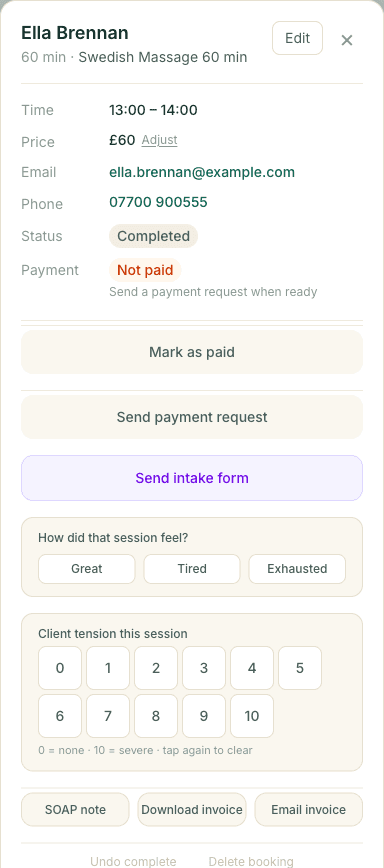
Click it, enter the amount to request, and click Send request. The client receives the same secure Stripe Checkout email.
What happens when the client pays
As soon as the client completes payment, the deposit is recorded on the appointment. Their card is saved to their profile so you can charge the remainder (or the full balance if you didn't take a deposit) with one tap after the session — using the normal Charge client now button.
If the client has no email address
Payment requests are sent by email, so the client must have an email on file. If they don't, update their record on the Clients page, then return to the appointment and use the Send payment request button.