Your public profile is the page clients see before they book. You control everything on it — from your photo and bio to what services and prices are displayed.
Finding your profile settings
Go to Settings → Profile. Changes save automatically a moment after you stop editing — you'll see a brief “Saved” confirmation at the bottom of the page.
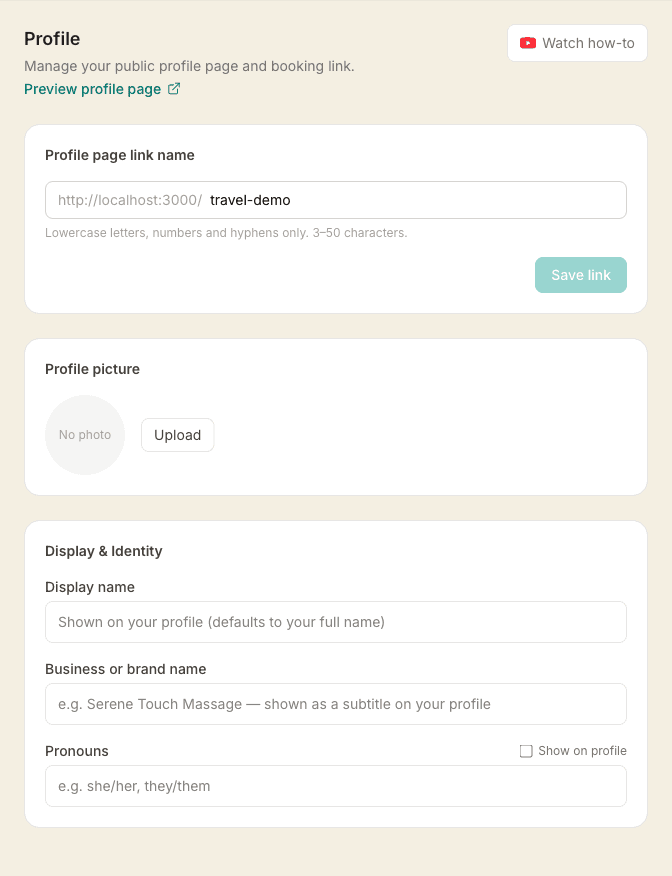
Profile photo and display name
Upload a photo and set the name you want clients to see. You can also add pronouns — tick Show on profile to display them.
If you trade under a business or brand name (e.g. "Serene Touch Massage"), add it in the Business or brand name field. It appears as a subtitle under your name on your public profile.
Professional title is what you call yourself — "Massage Therapist", "Reflexologist", "Sports Therapist". It does not appear on the page itself. It is used in the title of your browser tab, in your Google search result, and in the preview people see when your link is shared on WhatsApp or Facebook. Leave it blank and it stays as "Massage Therapist".
Choosing how big your photo is, and its shape
Your photo sits at the top of your profile, next to your name. Once you've uploaded one, two extra controls appear underneath it.
- Shape — Portrait (taller than wide, the default), Square, or Landscape (wider than tall). Pick whichever suits the photo: a head-and-shoulders shot usually looks best as portrait, a wider shot of you working in your room as landscape.
- Size on desktop — Small, Medium or Large. Large is how profiles have always looked. Small makes the photo noticeably smaller, which brings your bio and services further up the page on a computer screen.
The Preview box beside the buttons updates as you tap, so you can see both choices together before you leave the page. On a phone your photo always fills the width of the screen — that's where your name and star rating sit over the top of it — so the size setting only changes what people see on a computer.
Whichever shape you choose, the photo is cropped from the centre. If something important sits near an edge, crop the image yourself before uploading it.
Bio, location, and gallery
Each section has a Show on profile checkbox. Untick it to hide that section without deleting the content.
- About you — a short bio describing your practice and approach
- Location — a town or area name shown on your profile (e.g. "Leeds, West Yorkshire"). This is display-only — it doesn't affect bookings.
- Gallery — up to 3 photos (treatment room, ambience, etc.) with optional captions
Stuck on your bio? Let us write a first draft
If the About you box is blank, or you're just not sure how to start, tap Help me write my bio underneath it. You can add a rough line about your style or the clients you work with (spelling doesn't matter at all), then tap Draft my bio. We'll write a warm, first-person bio from your services, qualifications and area and drop it straight into the box, ready for you to edit. Change any word until it sounds like you.
A filled-in bio also helps clients find you on Google, so it's worth a minute even if you only use the draft as a starting point.
Reordering sections
Drag the grip handle (⠿) on the left of each section card to change the order they appear on your profile. The order is saved with your other profile settings.
Contact details and social links
Add a phone number, email address, or website URL and they'll appear as clickable links on your profile. You can also add links to your Instagram, Facebook, TikTok, and LinkedIn profiles — these appear as icons below your contact details. For social links, you can paste the full URL or just type your username (e.g. @yourhandle) and the correct link will be filled in automatically. All fields are optional — only add what you want clients to see publicly.
Service and price visibility
Under Services on profile, you can choose whether to show your services and prices on the public profile. Some therapists prefer to hide prices and have clients enquire first.
- Hiding services removes the service list from your profile — clients can still book via your booking page
- Hiding prices shows the services without amounts — the booking page will still show prices at checkout
Your booking URL
Your profile URL is shown at the top of the page (e.g. massagehub.app/your-name). You can change it — but any existing links you've shared will stop working, so update them everywhere you've posted them.