MassageHub automatically sends review requests to clients after appointments, syncs your Google reviews nightly (and your Fresha reviews whenever you press Sync now) to your profile and booking page, and intelligently routes repeat reviewers to the in-app form so you build reviews over time.
How review requests work
When you mark an appointment as Completed, MassageHub automatically emails the client a review request straight away.
The review link is single-use and expires after 30 days.
Google vs in-app reviews — smart routing
If you've added your Google review link in Settings → Reviews, clients are redirected to Google to leave a review. This builds your Google presence.
Google only allows one review per account per business. Once a client has already reviewed on Google, MassageHub detects this automatically and sends them to the in-app review form instead — so they can leave a review after every appointment, just like Fresha.
You can also manually mark a client as having left a Google review from their client profile, using the Has left a Google review toggle.
Syncing Google reviews
Go to Settings → Reviews → Google tab to connect your Google Business profile:
- Enter your Google review link (find it in your Google Business profile under Ask for reviews)
- Search for your business by name and town, or enter your Place ID manually
- Click Sync now to import your reviews and star rating
Reviews and your aggregate star rating sync automatically each night. Your rating and review count appear as a trust signal on your public booking page.
Why might my newest reviews not appear? Google's API shares up to 5 reviews per business, chosen by Google as the “most relevant” — it doesn't let us (or any booking platform) pick which ones, sort by newest, or fetch your full history. So the 5 that appear may not be your latest 5, and there's no setting on either side to change that. The good news: your aggregate star rating and total review count always cover all your Google reviews, so new reviews still strengthen the rating shown on your booking page. If there's a particular review you'd love on your profile that Google isn't sending, you can paste it into the Imported tab and it will appear alongside the rest.
Syncing Fresha reviews
If you have a Fresha profile with reviews, you can sync them to display on your MassageHub profile and booking page:
- Go to Settings → Reviews → Fresha tab
- Paste your Fresha reviews URL (e.g.
https://www.fresha.com/a/your-business-name-...) - Click Sync now
To find your Fresha reviews URL: go to your Fresha profile, click the reviews section, and copy the URL from your browser. Reviews sync when you click Sync now — pop back and click it again whenever you've collected new reviews. Each sync imports the reviews Fresha publishes on your public page (currently around six), and your aggregate star rating and total review count always cover your full Fresha history.
Moderating in-app reviews
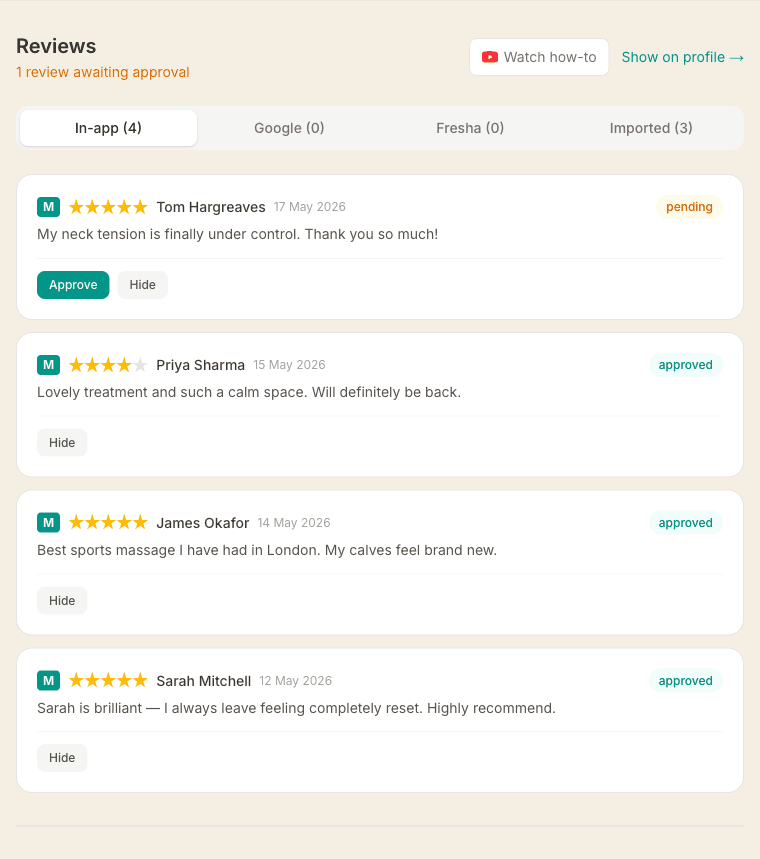
In-app reviews are submitted in a pending state and won't appear on your profile until you approve them. When a client submits one, you're notified straight away — a push notification and an email, each linking directly here — so a kind word never sits unseen. Go to Settings → Reviews and open the In-app tab to approve or hide them.
Turn a five-star review into a shareable image
Any five-star review has a Create shareable image button. Tap it and choose Square for a feed post or Story for the taller format. MassageHub generates a warm, on-brand card with the review, the stars and a small MassageHub mark. On a phone, tap Save / share image to save it to your photos or send it straight to Instagram or Facebook; on a computer it downloads — ready to post anywhere.
It works for in-app reviews you've approved, as well as reviews synced from Google or Fresha or pasted into the Imported tab. Nothing is posted for you — you save the image and share it whenever you like. (For in-app reviews, approve them first; the button appears once a review is on your profile.)
Controlling review visibility
Use the Reviews on profile card in Settings → Profile to show or hide the entire reviews section. You can also drag it to change where it appears on your profile page.