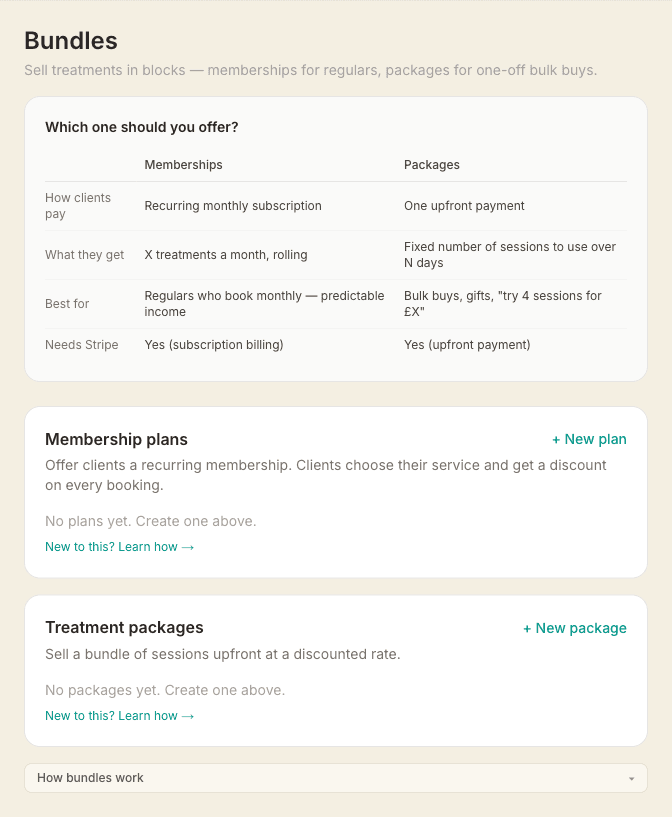
Treatment packages let clients buy a bundle of sessions upfront. They pay once via Stripe and redeem one session per booking, with sessions and expiry tracked automatically.
Pricing modes
When creating a package you choose one of two pricing modes:
- Discount % (default) — Set a percentage discount (e.g. 10%). When a client buys the package, they choose which service it applies to. The total price is calculated from the service price multiplied by the number of sessions, with the discount applied. That service and per-session price are then locked to their package.
- Fixed discount — Pick one service and set a fixed amount off each session (e.g. £5). The total is the service price minus the discount, multiplied by the number of sessions. The package is locked to that service.
Creating a package
Go to Settings → Bundles and scroll to Treatment packages. Click + New package and fill in:
- Package name — e.g. "5-Session Bundle"
- Description (optional) — shown to clients in their portal
- Number of sessions — how many bookings the package covers
- Pricing method — Discount % or Fixed discount
- Discount (%), or Service and Discount per session (£) — depending on the method
- Valid for (days) (optional) — leave blank for no expiry
Click Create package. A Stripe Product is created automatically on your connected account.
Recipe: buy 5, get 1 free
A "buy 5, get the 6th free" offer is a 6-session package priced at 5 sessions. The simplest way to set it up:
- Click + New package and set Number of sessions to 6
- Choose Fixed discount and pick the service
- Set Discount per session (£) to the service price divided by 6 — for a £60 massage, that's £10
The form shows the total as you type: 6 × £50 = £300, which is exactly 5 sessions at £60. If the price doesn't divide evenly by 6, round the discount to the nearest penny and the total will be within a few pence of 5 sessions. Want the offer on more than one treatment? Create one package per service.
Private packages (grant only)
Sometimes you want a package that isn't on offer to everyone — a special rate for one client, a bespoke bundle, or a deal you only mention in person. Tick Private — only available by granting it to a client when you create or edit a package and it stays in your settings (marked with a Private badge) but never appears on your public profile, your booking page, or anyone's client portal. Its direct purchase link won't work either, so it can't be shared around.
A private package still works exactly like any other when you hand it out: it shows in the package dropdown on a client's page, so you can grant it, charge their card, or send a payment request as normal. The moment you grant it to a client, it appears in their account like any other pack — visible only to them. It's the same package you already know, just kept off the shelves until you choose who gets it.
You can also let a chosen client buy a private package themselves, the same way private memberships work. Open the client's profile, find Private package access, and press Give access. The package then appears on that client's own account page — theirs alone — where they pay with their own card in their own time, so there's nothing for you to charge or request. Use Copy account link to send them straight there, and Remove access to take it away again with one tap.
How clients buy a package
Your active packages now show on your public profile and your booking page, as well as inside the client portal (the exception is private packages, which only ever reach a client when you grant them — see above). A client clicks Buy and — for discount % packages — chooses which service to apply it to. Services are shown grouped by type with the original price crossed out and the discounted total price highlighted. They pay by card via Stripe and the sessions are available immediately.
A brand-new client doesn't need an account first — they enter their name, email and phone, pay, and we set up their account for them, emailing a link so they can sign in afterwards. You can hide the section, or drag where it sits on your profile, under Settings → Profile.
How sessions are redeemed at booking
When a client with an active package books an appointment, the booking page automatically detects their package and offers to use one session. If they also have a membership credit, they'll be shown a choice: use a package session, use a membership credit, or pay normally.
The booking summary shows 1 package session throughout all steps, and confirmation emails reflect this.
For discount % packages, the session will only be offered for the service the client chose when they purchased the package.
Viewing package usage
On the Treatment packages screen in Settings, expand any package to see which clients have purchased it, how many sessions they've used, and whether their package has expired. Client names are clickable and link to their client record.
Clients can see their package status in their portal — sessions remaining, purchase date, and expiry date if applicable.
Selling a package to a specific client
When you've agreed a package sale with a client, open their detail page and scroll to Treatment packages. You have three ways to collect, depending on the situation:
- Charge card — if the client already has a saved card on file, charge them immediately. Select the package (and service if required), review the amount and card, then confirm. The card is charged via Stripe and the package is granted instantly.
- Request payment — if the client has an email address, this emails them a secure Stripe link to pay for that exact package. Choose the package (and service for discount packages), check the amount, and click Send request. When they pay, the package is added to their account automatically — you don't need to grant it as well.
- Copy purchase link — for a client with no email address on file, this copies a link to their client portal where they can buy the package themselves.
Granting a package manually (offline sales)
If a client pays by cash or bank transfer outside of MassageHub, you can record the sale manually. On the client's detail page, scroll to Treatment packages and click + Grant package. Choose the package template and enter the amount charged — no Stripe payment is needed. The sessions are added immediately and appear in the client's portal.
Linking a package to a recurring appointment
When creating or editing an appointment for a client who has an active package, a Package dropdown appears in the appointment form. Select the package to link that appointment to it. This does not deduct a credit immediately — credits are deducted when the appointment is marked complete.
Credit deduction on completion
When you mark an appointment as complete, one credit is deducted from the linked package automatically. If the appointment has no package linked but the client has active credits, you'll be prompted: you can link the package and complete in one step, or complete without deducting a credit.
Seeing credits remaining
The remaining session count is shown:
- On the calendar tile — "X sessions left" appears on the appointment block so you can answer the question at a glance. The badge turns amber when 2 or fewer sessions remain.
- In the appointment detail panel — the package name and sessions remaining are shown when you tap the appointment.
- On the client detail page — the full history of sessions used and remaining is shown under Treatment packages.
- In the client portal — clients can see their package status and sessions remaining at any time.
Removing a package added to a client by mistake
If you grant a package to the wrong client, or add one twice, you can remove it. Open the client's detail page, find the package under Treatment packages, and click Remove. It is deleted straight away from their record and from their client portal, leaving nothing behind to confuse anyone.
You can remove a package whether it is untouched or you have already drained its credits with the minus button. If any sessions are marked as used, the confirmation tells you how many before it deletes, so a genuine package isn't cleared by accident. Removing a package can't be undone, and any recurring appointments linked to it are simply unlinked rather than cancelled.
Archiving a package
Archiving is different from removing. Archive applies to the package template in Settings → Bundles: click it to stop new clients buying that package, while clients who already purchased it keep their remaining sessions. Remove (above) clears one package off one client.