Collect a deposit when a client books and charge the remaining balance after the session — useful for securing appointments and reducing no-shows.
Enabling deposits
Go to Settings → Payments. Under When to charge, choose Charge after session or Smart charging. Then find the Require a deposit section and switch it on.
A deposit only applies when the client's card is saved and the balance is charged after the session:
- Charge after session — every client paying by card pays the deposit at booking.
- Smart charging — only returning clients pay a deposit. New clients still pay the full fee at booking.
- Charge at booking — no deposits. Everyone pays the full fee upfront, so the deposit section is hidden.
If you take booking requests, nothing is charged when the client asks — the deposit is taken when you approve the request. Clients who choose to pay cash on the day never pay a deposit by card. You can also exclude individual clients from deposits on their profile.
Setting the deposit amount
Choose between two modes:
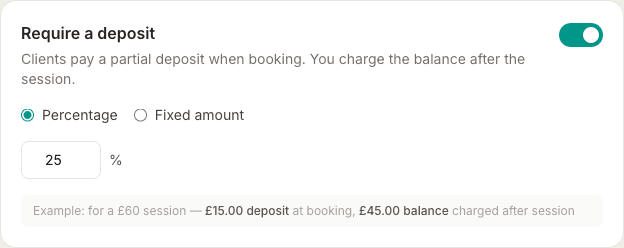
- Percentage — e.g. 25% of the service price. The deposit scales with the service cost automatically.
- Fixed amount — e.g. £20 regardless of which service is booked.
A live preview shows the split for a typical £60 service so you can see exactly what clients will pay upfront vs after.
What clients see at booking
At the payment step, clients see a clear breakdown: the deposit amount they're paying now, and the balance due after the session. They pay only the deposit at booking. Their card is saved for the remainder.
Charging the remainder
After the session, open the appointment and click Charge £X remainder. The balance is taken from the client's saved card — no re-entry needed.
If the session was shorter than expected or you want to waive the balance, click Keep deposit only (waive remainder). The appointment is marked as fully settled at £0 additional charge.
Deposits and price adjustments
If you adjust the price before charging (add a surcharge or discount), the remainder is recalculated from the adjusted total minus the deposit already paid.
Deposits on manually-booked appointments
The deposit settings above apply to clients who book themselves online. If you book an appointment from the calendar on their behalf, see Collecting payment for manually-booked appointments for how to send a deposit or payment request link directly to the client.
Refunding a deposit
If the appointment is cancelled after the deposit is paid, you can issue a refund from the appointment panel. See Issuing refunds for details.