You can work from a clinic, offer home visits (mobile), or both — and let clients choose when booking.
Setting up locations
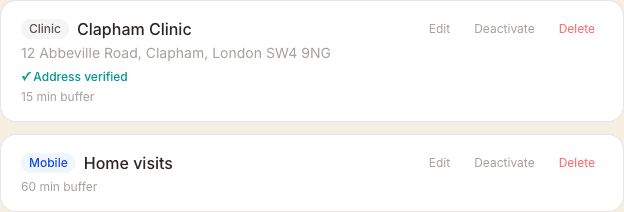
Go to Settings → Locations to add your locations. Choose Clinic / studio if clients travel to you, or Mobile if you travel to them.
Each location has a buffer time — a gap added after appointments before the next slot becomes available. For mobile locations, this defaults to 60 minutes to account for travel. For clinic locations, set it to whatever turnaround time you need.
Assigning services to locations
When editing a service, you can choose which locations it's available at. For example, deep tissue massage might only be available at your clinic, while Swedish massage is offered everywhere.
Client experience
If you have multiple locations, clients will see a location step first — unless every treatment you offer is at a single location, none of them is mobile and you haven't turned off Let the treatment choose the location in Settings, then Booking. Then clients pick the treatment and its location is filled in for them. For mobile bookings, they're asked for their address straight away — before choosing a service — and, if your travel mode is Driving, to confirm parking is available at that address (you can turn this confirmation off in the Travel settings below). MassageHub then checks they're within your travel area. Their address is also used to calculate accurate travel time between appointments.
Travel time settings
Go to the Travel settings section at the bottom of the Locations page to configure:
- Home / base address — your home postcode or full address. Used as the starting point to calculate travel time to your first appointment of the day and from your last appointment home. It doubles as your practice address for in-person card payments (Tap to Pay) and on your Data Processing Agreement. If you work from a clinic and leave this blank, your first active clinic location is used for those two instead, so there's nothing you need to do.
- Travel mode — Driving or Transit. Choose whichever you use to get between appointments.
- Ask clients to confirm parking — when your travel mode is Driving, home-visit bookings ask the client to tick that parking is available before they continue. It's on by default; switch it off here if you don't need it.
- Preparation time — extra minutes added before each appointment for setup, changing, or unpacking. This is in addition to travel time.
- Early arrival buffer — extra minutes added to travel time so you arrive a few minutes early rather than exactly on time.

Dynamic travel time vs fixed buffer
When a clinic location has a verified address, MassageHub uses Google Maps to calculate the actual travel time between it and the previous or next appointment location. This is more accurate than a fixed buffer.
If an address hasn't been verified yet (shown with an amber "Address unverified" badge), or if Google Maps isn't configured, the fixed buffer minutes you set on the location are used instead.
On your therapist calendar, travel time appears as an orange hatched strip between appointments at different locations, labelled with the travel time in minutes.
Travel area — managing out-of-area requests
The Travel area settings (in the Travel settings section) let you define how far you're willing to travel for home visits, and what happens when a client is outside that area.
- Normal travel area — clients within this travel time (default 30 min) can book home visits immediately with no extra steps.
- Maximum distance — clients beyond this time (default 45 min) are told you don't cover their area. They're offered your clinic as an alternative if you have one; if you don't, they get a short form to leave their name, email and phone so you can reply. Either way they can also sign in, in case you've already approved them for home visits.
- Earliest departure time — the earliest you can leave home for a morning appointment (default 09:30). This ensures morning slots aren't offered if you can't physically arrive in time.
Clients whose address falls between your normal area and maximum distance see a borderline message — they can fill in a short form to send you a home visit request. You'll receive an email with their details and estimated travel time.
The same happens when a client's postcode district isn't in your Travel area district list (see the Travel areas article). That check now runs at the address step too, so they're told straight away instead of reaching a calendar with every date greyed out. Because no distance was measured in that case, the email you receive names their postcode district instead of a travel time.
Reviewing and approving out-of-area clients
When a client sends a home visit request, they appear in your Clients list with a "Pending review" status. Open their record and scroll to the Home visit arrangement panel to set one of these statuses:
- Approved — they can book home visits normally, and once they're signed in this also overrides your Travel area map, so a postcode you don't normally cover won't block them.
- Approved with surcharge — the same, including the Travel area override once signed in, but a travel supplement (set by you, in £) is added to each booking total.
- Clinic only — home visits are blocked. Once they're signed in, the mobile option on their booking page is greyed out with "Home visits not available at your address"; if they aren't signed in the booking is refused when they try to confirm it.
You can also set optional restrictions for out-of-area clients:
- Minimum booking duration — shorter services will be greyed out with a tooltip explaining the minimum.
- Require membership or package — the client must use a membership credit or package session to book a home visit. The "Pay normally" option is hidden, and if they have no active membership or package, services are disabled with a notice.
When you approve or decline a request, MassageHub emails the client automatically. Approved clients get a link straight to your booking page. If they're signed in, the travel check is skipped and they book as normal. If they aren't, the address step won't recognise them — so it offers a Sign in button right there, and once they're in, their arrangement applies.
While a client is pending review, their portal shows a notice: "Your home visit request is being reviewed — [your name] will be in touch shortly."
Automatic mileage-based surcharges
Instead of setting a manual surcharge on each client record, you can turn on Travel surcharge in Settings → Locations. Every mobile booking is then priced automatically from the bands you define.
- Bands use the same unit as your Travel area settings — switch between miles and travel time (minutes) with the single selector at the top of the Travel settings card.
- Add up to six bands. Example: Free within 5 miles, 5–10 miles = £5, 10–15 miles = £10.
- Each booking picks the lowest band that covers the client's distance, and the surcharge is added to the price automatically.
- Clients see the surcharge in the booking flow as soon as their address is confirmed — no surprises at payment.
- Clients beyond the largest band fall through to your existing Maximum distance rule.
Manual per-client surcharges (set on a client's record) still win when present, so any bespoke deals you've arranged keep working.