The Travel area page lets you draw, on a map, which postcode districts you'll travel to for mobile appointments — and change that map for particular days or dates. It's the feature to reach for when your usual coverage can't hold, like a tube strike week.
Two things both called “travel”
MassageHub has two separate travel settings, and it helps to know which is which:
- Travel settings (on the Locations page) — a time-based rule: “I'll travel up to 30 minutes from home.” This is covered in the Offering multiple locations article.
- Travel area (this article) — a map-based rule: you pick exact postcode districts. It's found at Settings → Travel area.
Both checks run together — a mobile booking has to pass both. This article is about the map.
The page at a glance
Open Settings → Travel area. On the left is a list of your service areas — each one is a separate map. On the right is the area you've selected, with three tabs: Map, Days, and Date overrides.
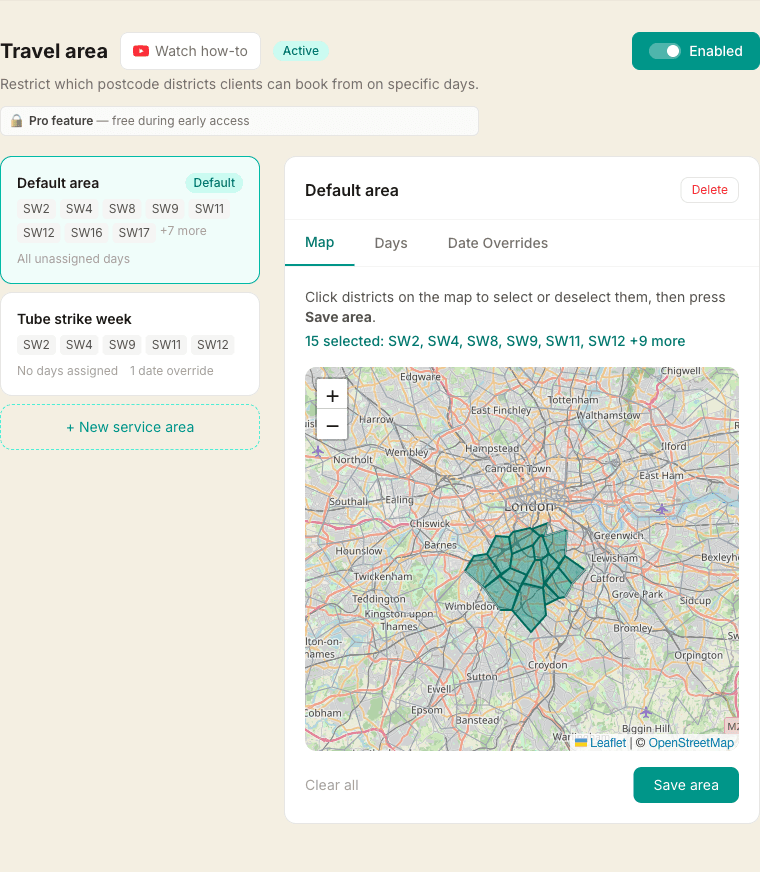
Use the Enabled / Disabled toggle at the top right to switch postcode checking on or off. While it's off, every postcode is accepted — handy while you're still setting up. Switching it off doesn't lose your saved maps.
The Map tab — drawing an area
The Map tab is where you pick the postcode districts an area covers. Click a district to select it (it turns teal); click again to deselect. When you're happy, press Save area — nothing changes for clients until you do.
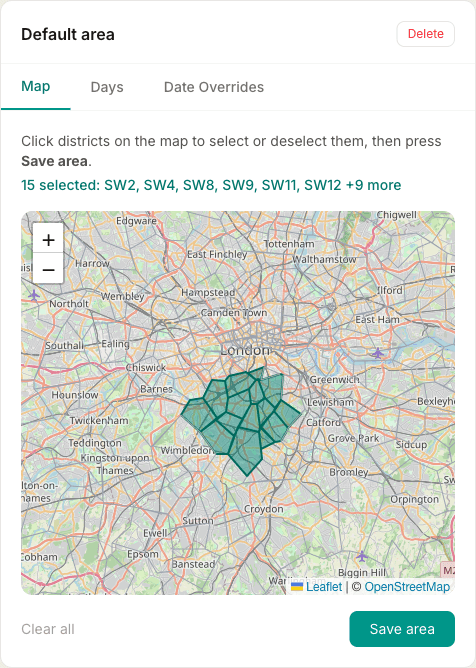
If you'd rather not click district by district, the Suggest button pre-fills everything within your travel radius as a starting point — you can then add or remove from there.
One important rule: an area with no districts selected restricts nobody. The check only bites once you've actively selected districts, so a half-finished area is perfectly safe to leave.
The default area — your everyday map
One area is marked Default (shown with a small teal badge). The default is the map that does the everyday work: any day that isn't covered by a more specific rule falls back to it.
If you only ever create one area, that one is your default, and it applies every day. Most therapists need nothing more than this. The extra maps below are only worth setting up when your coverage genuinely changes on certain days or dates.
The Days tab — a different map on certain weekdays
The Days tab lets you assign days of the week to an area. On those days, that area's map is used instead of the default. For example, you might keep weekends to a smaller, closer patch.
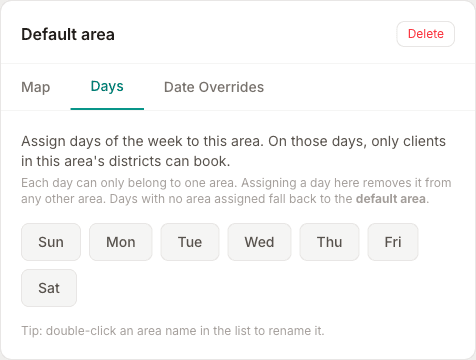
Each day can only belong to one area — assigning Saturday here automatically removes it from anywhere else. Any day you leave unassigned falls back to the default.
The Date overrides tab — a map for specific dates
A date override forces a particular area to be used on a specific date or date range. This is the tool for one-off changes — a strike week, a match day, school holidays, a road closure.
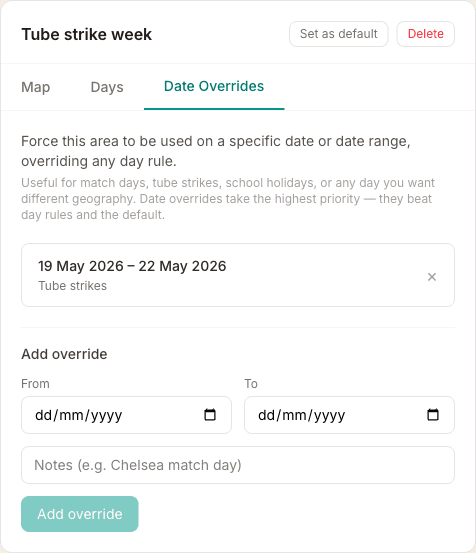
Think of an override as a sticky note placed over your normal map: it sits there only for the dates you chose, then peels off by itself — there's nothing to switch back afterwards. Add a short note (e.g. “Tube strikes”) so you remember why it's there.
Which map wins on a given day?
When several rules could apply, MassageHub picks the most specific one. In priority order:
- 1. A date override covering the booking date — beats everything else.
- 2. A day-of-week rule for that weekday — used if no override applies.
- 3. The default area — the fallback for any day not covered above.
In short: a date override beats a day rule, and a day rule beats the default. If nothing matches, or the chosen area has no districts saved, the check is simply skipped.
Worked example — the May 2026 tube strikes
London Underground strike action is planned from Tuesday 19 to Friday 22 May 2026, midday to midday each day, with disruption likely into the evenings. If you're a mobile therapist who relies on the Tube to get around, a client could book you for a district you can't physically reach those days. Here's how to handle it:
- On the Travel area page, click + New service area and name it something like Tube strike week.
- On its Map tab, select only the districts you can reach without the Underground — on foot, by bike, by bus, or in your own car — then press Save area.
- On its Date overrides tab, add the range 19 May → 22 May with the note Tube strikes.
For those four days, clients outside that smaller patch are gently told you don't travel to them. From 23 May, your normal default map is back automatically — nothing to undo. Leave the Tube strike week area in place and you can reuse it next time simply by adding a new date override.
Check it with “Test a postcode”
At the bottom of the page is a Test a postcode box. Paste in a client's postcode (or full address) and it tells you, day by day, whether that client could book — including any active date override. It's the quickest way to confirm an override is doing what you expect before you rely on it.
What the client sees
The check runs as soon as they type their address, on the first step of booking — before they choose a treatment and before they ever reach your calendar.
- A district you never cover — they're told you don't offer home visits to their area. If you have a clinic saved under Locations they're offered that instead; if you don't, they get a short form to leave their name, email and phone, and you'll get an email naming their postcode district. Either way they can sign in, in case you've already approved them.
- A district you cover on some days only — they carry on booking as normal and see a note saying which days you visit, for example “Tuesdays and Thursdays”. The calendar then greys out the other days.
A date override is treated as coverage here. So in the tube-strike example above, a client in a district your default map covers still gets through the address step during strike week, and simply finds 19–22 May greyed out on the calendar. The immediate refusal is reserved for districts you don't cover on any day at all.
Good to know
- The travel area check only applies to mobile bookings where the client provides an address. Clinic bookings are never affected.
- Travel areas apply to everyone booking a mobile appointment with an address, with one exception: a client you've set to Approved or Approved with surcharge on their record skips the postcode check once they're signed in, the same way they already skip the travel-time limit on your Locations page. Approving someone is you saying you'll travel to them, so it overrides both. Everyone else — including existing clients you haven't approved — is held to the map.
- If the person leaving their details is already one of your clients and you've already decided about home visits for them — approved, approved with a supplement, or clinic visits only — you still get the email, clearly marked as an existing client rather than a new enquiry, and it names the arrangement they're currently on. Nothing on their record changes unless you change it yourself. This is worth knowing for anyone set to clinic visits only, because that's usually someone asking to be reconsidered.
- Double-click an area's name in the left list to rename it.
- The same trick works for anything that reshapes your travel for a while — match days, festivals, holidays, roadworks.