Fresha lets you export your client data as a CSV. Here's how to get it and import it into MassageHub.
Step 1 — Export from Fresha
- Log into your Fresha account
- Go to Reports → Clients (or similar — the exact location varies by Fresha version)
- Click Export and download the CSV
Alternatively, go to the Clients section, select all clients, and look for an export option.
Step 2 — Import into MassageHub
- Go to Clients in MassageHub
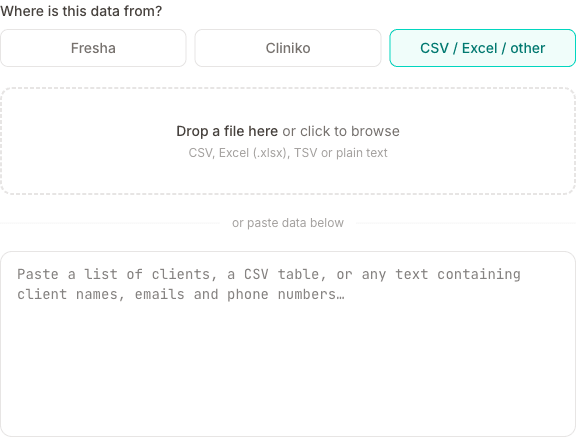
- Click Import clients
- Pick Fresha as the source
- Upload the CSV you downloaded from Fresha
- The list appears almost instantly — Fresha imports use a purpose-built parser, no AI step
- Review the table (any "Marketing" or "Blocked" badges show alongside the name), then click Import [X] clients to save them
What gets imported
- Full name (or first + last if Full Name is blank)
- Phone — Mobile Number is preferred, with Telephone as a fallback. UK numbers in international format (
+447...or447...) are normalised to07... - Date of birth — full dates and Fresha's day-and-month-only entries (e.g.
11-30) are both preserved - Address — Address, Apartment Suite, Area, City, State, and Post Code are joined into a single line
- Notes
- Marketing consent — "Accepts Marketing" → marketing opt-in flag, used by Message clients bulk emails
- Blocked status — "Blocked" + "Block Reason" → a Do not book badge with the reason on the client record
Appointment history isn't imported — that lives in Fresha, and there's no bulk way to bring it across. Keep your Fresha account (or its export) for as long as you need the historic record. If you want a few recent sessions in your MassageHub diary, you can add them by hand — past dates are allowed, and a backdated session won't email your client. Other Fresha columns (Gender, Referral Source, Accepts SMS Marketing, Added date) aren't carried across right now since MassageHub doesn't use them.
Re-importing after changes in Fresha
You can safely run the import again with a fresher Fresha export — clients are matched by phone, so existing records aren't duplicated. For matched clients the "Do not book" flag is refreshed from the new CSV (other fields like notes are left alone).
Marketing consent is the exception, and deliberately so. It is taken from the CSV the first time a client is imported, and left alone after that — so re-importing an older export can never switch someone back on who has since unsubscribed. If someone changes their mind, change it on their record in MassageHub, or select them on the client list and use Marketing on or Marketing off.
Services
For services, go to Services → Import from AI and paste in your Fresha service list (copy it from your Fresha profile page or from the Fresha app).
Wondering why MassageHub doesn't have a marketplace like Fresha's? Here's the thinking — and what you build instead.